![stage-stubs-logo.svg]](https://help.stagestubs.com/hubfs/stage-stubs-logo.svg)
Quick answer: On Stage Stubs, open your published event's Adverts tab, choose one, two or three adverts, upload your images (crop them to fit) and click Save. Adverts appear on the PDF tickets buyers download. It's free to use.
You can add up to three adverts to your tickets: perhaps a local business that sponsors your show, the café round the corner, or a sneak peek at your next production. Families often keep their tickets until the big day (and sometimes long after), so your adverts get seen again and again. It's free to use.
Adding adverts
- Go to My Events and click View next to your event. It needs to be published first.
- Open the Adverts tab.
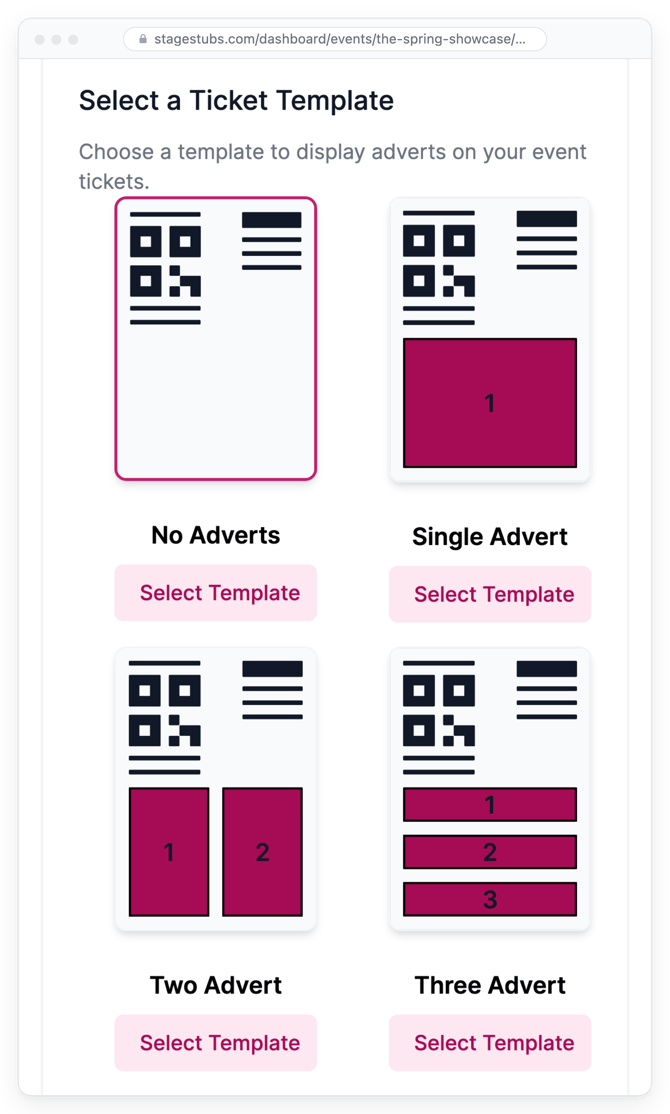
- Under Select a Ticket Template, choose Single Advert, Two Adverts or Three Adverts. (Choosing No Adverts takes them off again.)
- Under Upload Your Adverts, add your images. Any size is fine, because you can crop each one to fit. For the sharpest result, use images at least 900 × 500 pixels for one advert, 425 × 425 pixels each for two, or 900 × 150 pixels each for three.
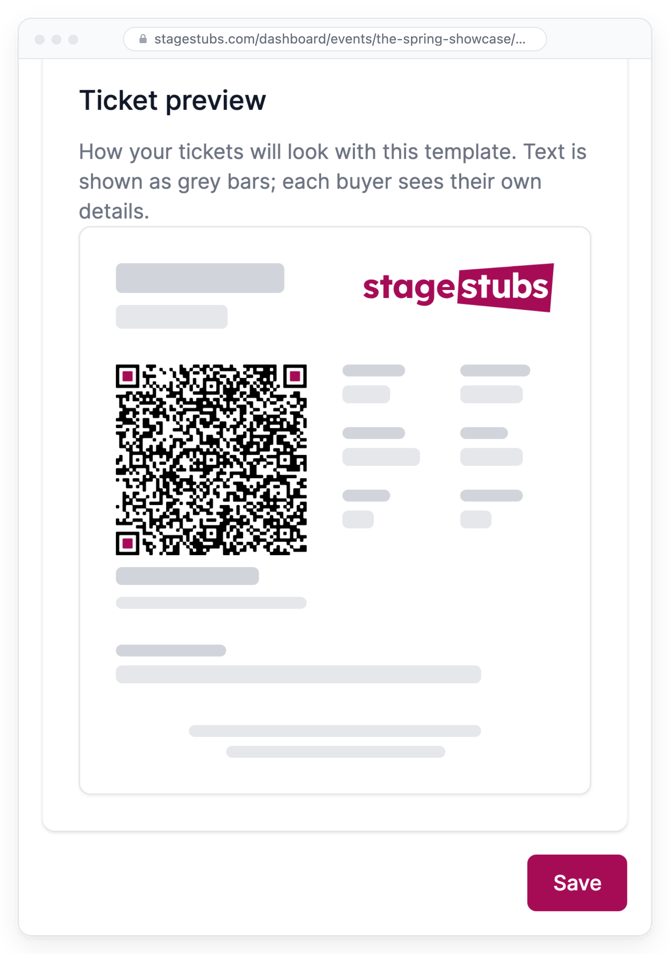
- Check how it looks in the Ticket preview, then click Save.
Good to know
Adverts appear on the PDF tickets. Anyone who downloaded their tickets before you added adverts won't see them until they download them again. Adverts don't show on tickets saved to Apple Wallet or Google Wallet.
Common questions
Does it cost anything? No, adverts are free.
Do adverts show on wallet tickets? No, only on PDF tickets.
Related guides: Selling merchandise · Sharing your event
Need a hand? Email us at hello@stagestubs.com and we'll be happy to help.