![stage-stubs-logo.svg]](https://help.stagestubs.com/hubfs/stage-stubs-logo.svg)
Quick answer: To hold seats back on Stage Stubs, open the showing from My Events, go to the Availability tab, select the seats (or enter how many general admission tickets to hold) and click Save. Held seats can't be bought until you release them. Changes apply to one date at a time.
There's nearly always someone who needs a seat saving: a special guest, a performer's family, a wheelchair user who needs the end of a row, or the person running the lights. You can take seats or tickets off sale for any date, and put them back on sale whenever you like.
Finding the right date
Go to My Events, click View next to your event, then scroll down to your showings and click View showing for the date you need. Open the Availability tab.
If your show has a seating plan
Click the seats you'd like to keep back on the plan, then click Save. Those seats can no longer be bought. To put them back on sale, just click them again and Save.
There's a daily limit on how many times you can change a seating plan's availability, and the page tells you how many changes you have left ("You have 3 updates left for today"). So it's best to select all your seats first, then save once.
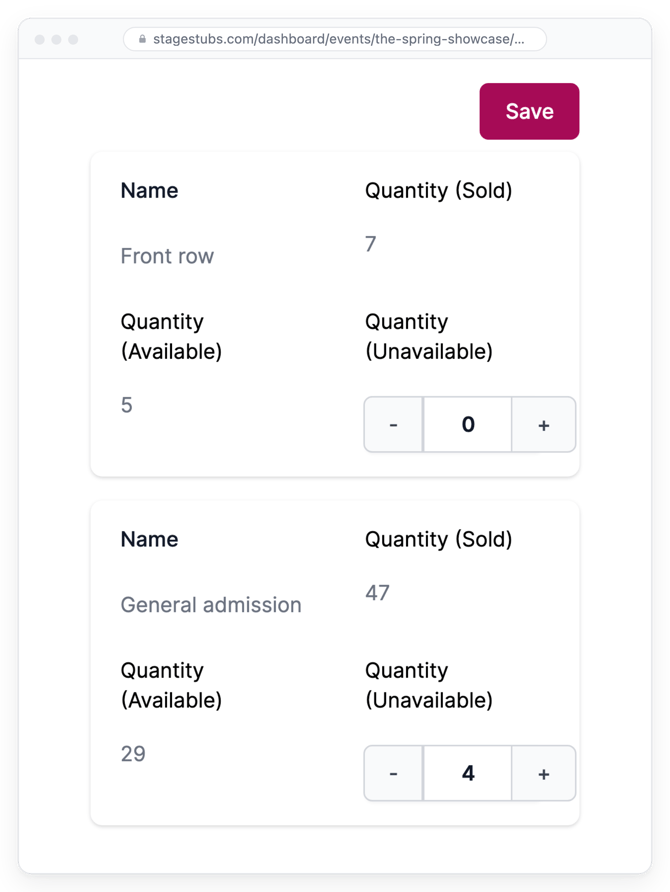
If people can sit anywhere (general admission)
On the Availability tab, enter how many of each ticket you'd like to keep back, and save. To release them again, simply lower the number.
Good to know
Changes only apply to the date you're working on, so if you have several performances, repeat it for each one. Held seats appear as Held or blocked in your event's figures.
Giving those seats to guests? You can download proper tickets for them. (See: Tickets for guests and blank tickets.)
Common questions
Can I give held seats to guests? Yes, download tickets for them from the Tickets tab.
Does it work for general admission? Yes, enter a number to hold on the Availability tab.
Related guides: Tickets for guests and blank tickets · Seating plans
Need a hand? Email us at hello@stagestubs.com and we'll be happy to help.